Classes & breakout groups
Sunday School in one room, Youth Group in another, the main service in the chapel — each with its own teacher, its own languages and its own audience. Every room is a group, including the hall. The default room is initially called Main group; rename it to match your building. You define it once at the sound desk; the teacher starts it from their own phone; the congregation just picks a room.
Updated for v0.6.0-beta.6, with screenshots captured from that release. Room names and settings shown are examples.
What a group is
The Rooms card includes the hall, marked hall, alongside your classes. The hall cannot be deleted; its row also holds its readings and sacrament prayers. Every room has three things of its own:
- Its own speaker. The teacher goes live on the presenter page and picks the class. What they say goes to that class only — the chapel never hears it, and the class never hears the chapel.
- Its own language menu. By default a group offers every language the service has turned on. You can narrow it to the two or three a class actually needs.
- Its own bill. A group is a separate set of sessions with the translation provider. It costs nothing while it is defined and stopped; it bills per language-minute while it runs, on its own row of the operator page.
Groups are listed — every phone sees them in the room picker, and they persist from one Sunday to the next until you delete them. That is the difference from the temporary, code-protected groups attendees make for themselves; those are in the private groups guide and are not repeated here.
Set one up
On the operator page, open the Rooms card, choose Edit rooms, then tap + Add room.

- Name — what the phones will show: Sunday School, Youth Group. Up to 60 characters.
- Languages — the boxes start all checked, and all-checked means follow the service's language list: turn a language on for the service later and this group gets it too. Uncheck to narrow the class to what it needs; a narrowed group keeps its own list. You cannot uncheck the last one.
- Auto-stop after — a hard cap in minutes on how long the class can run. New rooms default to 60 minutes. Raise this for longer meetings. 0 means "use the service default" (the max value under Service settings → Auto-stop, 90 minutes out of the box). This is the setting that saves you when a teacher goes live and forgets; set it to the length of the class plus a little.
- Create. The group appears in its own row with a status line —
es, fr · stopped— and a Start button.

From here on the card is where you manage the class:
- Rename or change the cap with Edit. The language checkboxes in the row itself apply immediately — no save button — and a running class keeps its existing sessions, presenter and devices. Only added or removed languages change.
- Remove with ✕. It asks first. If the class is running, it stops.
- Groups defined in a config file (the
LT_GROUPSroute in getting started) carry a small config tag. They work the same way; editing one on this page overrides the file for that group.
Defining a group never opens anything with the provider. Add all your classes on Saturday; the bill starts when a class does.
Start it (the teacher)
The teacher does not need the operator page. On any phone or laptop:
- Open the presenter page — the
https://…/presenteraddress on the operator page's link row. It asks for the operator PIN once (a link that already carries?pin=skips this). - Under Present to, pick the class instead of the hall. The heading changes to Group: Sunday School, and if anyone is already in the room it says so: 👥 4 phones waiting for this group to begin — Go live starts it.
- Pick the microphone and tap Go live.

Go live starts the class. The waiting phones connect, a stream
opens for each language they are listening to, and the group's row on the
operator page flips to live · 4 listening · $0.03. There is
no step at the sound desk.
The operator's Start button does the same job from the desk, and the two are deliberately identical: both are lazy. A language opens when a phone or an assigned room speaker needs it — phones already waiting get theirs at once, later arrivals open theirs on joining — so a class nobody joins costs nothing without speaker demand, and a class offered in four languages with phones on two of them pays for two.
- One teacher per class. A second person going live to the same group takes over the presenter role; the two mics are not mixed. The Participants panel is how a co-teacher or a student gets a turn — grant requests by hand, or flip Let anyone interject for a discussion where phones take the floor as they speak.
- Switching class mid-stream. Changing Present to while live asks for confirmation, because it ends the current stream. The class you leave keeps running (see below).
- Room mic instead of a phone. A playout box or a laptop on the
/speakerpage can contribute a microphone; it appears in the presenter's Microphone list like any other.
What the phones see
As soon as at least one group is defined, the phone page opens with a room picker: each room by name, including the hall (initially Main group). A class that is defined but not yet running is marked starts soon.
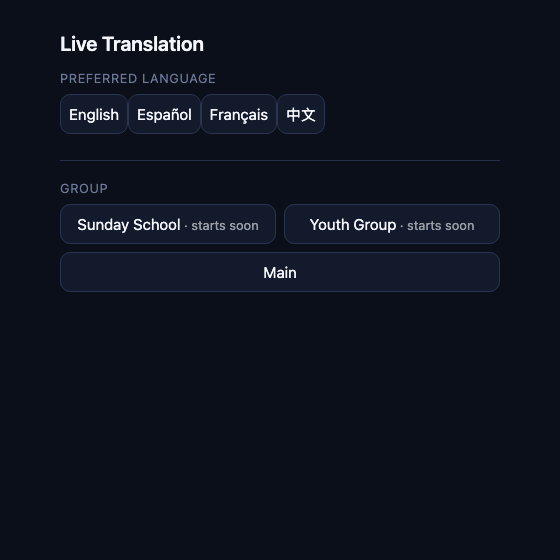
- Joining early is fine. The phone parks with You're in — waiting for this group to begin… and connects by itself the moment the teacher goes live. No re-tapping; the teacher sees the count of phones waiting.
- The language list is the group's list, not the service's — a class narrowed to Spanish and French offers only those two.
- When the class stops, the phone says ⏹ Not live right now. and keeps its place; if the class starts again it reconnects where it was.
- Phones can speak when that room’s Allow participants speaking switch is on. The switch is saved across restarts; turning it off hides the speak controls and clears the floor and queue. Before the teacher goes live, the floor is open and phones take turns as they ask; once a teacher is live, requests wait for the teacher's grant unless Let anyone interject is on.
Stop it & the bill
A group bills from the moment it starts until the moment it stops, for each language that is open — the same per-minute rates as the main service, shown live on the group's row. The important thing to know is what stops it:
- The teacher's Stop button on the presenter page. Immediate.
- The operator's Stop button on the group's row. Immediate. Either button ends the class, whoever started it.
- The auto-stop cap you set on the group (or the service default if you left it at 0).
- Idle stop — the service-wide idle minutes under Auto-stop (20 out of the box): a class with no audio reaching it for that long shuts itself down.
- Deleting the group, or the provider rejecting every key.
Stop means the class is over. The teacher taps Stop and the phones see it end, the row flips to stopped, the streams close — exactly what the operator's Stop does from the desk, and it does not matter which of them started it. Two things do not stop a class: closing the presenter page, and losing WiFi. A teacher who reconnects and taps Go live carries on where they were; a teacher who walks off with the page still open leaves it running. That is why the cap is worth setting to something close to the real length of the class rather than leaving it at a cap longer than the class needs.
Idle stop only catches true silence — a live mic streams continuously, room noise included. A teacher who leaves the presenter page open on the table after class does not count as idle. The cap does.
The Rooms card summary — Rooms — 3 defined · 1 running · 6
listening · $0.41 — is the one-glance check that nothing is running
that shouldn't be. Restart (⟳) stops and starts a class in one tap
if a session has gone strange.
Room speakers & the projector
Open Playout devices (/playout). Add the class to a
speaker’s + also play for… list, choose its language, and tick this is the room’s PA
if it feeds the room PA. Every dropdown applies immediately. A box can serve
several rooms and follows the one that went live most recently. Use
🔔 Test to identify its physical output without starting translation.
A registered speaker on a running class opens its assigned language even if no phone is listening. Include that stream when planning costs. See getting started → Room speakers for desktop, Raspberry Pi and browser setup, and the Room audio graph for testing.
Projectors can show a class too. Enable a desktop display or register a
browser from the gear on /projector, then assign its room,
languages, layout and QR on Playout devices.
A Sunday with two classes
Chapel at 10, then Sunday School and Youth Group at 11:15 in two rooms. One laptop at the sound desk, the teachers on their own phones.
- Saturday. Rooms → Edit rooms → + Add room → Sunday School, all languages, auto-stop 60. Again → Youth Group, narrowed to Spanish, auto-stop 60. Both rows show stopped. Send each teacher the presenter link and the PIN.
- 10:00. The main service runs as usual. The phones' picker shows the hall plus two classes marked starts soon; everyone is in the hall.
- 11:05. The operator stops the main service. Phones drift to their classrooms and tap Sunday School or Youth Group — and wait. Each teacher's presenter page now reads 👥 N phones waiting for this group to begin.
- 11:15. Each teacher taps Go live. Both rows on the operator page flip to live with a listener count and a cost that ticks up. Two classes, two bills, one screen.
- 12:10. Youth Group ends early; that teacher taps Stop and leaves. The row flips to stopped on its own. Sunday School runs long; at 12:15 its auto-stop cap ends it anyway. Rooms card: no rooms running (the hall remains listed too). Done.
Next Sunday, step 1 is already done. The groups are still there, still stopped, still free.
When something's wrong
The teacher tapped Go live and the class never went live
https address.Phones are stuck on "waiting for this group to begin"
The class offers the wrong languages
The teacher's phone asks for a PIN
…/presenter?pin=… — and the prompt
disappears. The congregation's page never asks for one.Two teachers went live in the same class
The class kept running after everyone left
A phone picked the class but hears the chapel — or nothing
/speaker page, the row must pick the class as
its room, not just the language — a language alone means the main
service.Something not covered here? Write to support@lithos.community with what the group's row on the operator page said and what the teacher's page said, and we'll sort it out.